
Entering past records (back-dating your history)
Load months of earlier purchases, sales and expenses without double-counting what you already told RushFlow.
You can enter business that happened before you started using RushFlow. Every document carries its own date, and the accounts, stock ledger and reports all follow that date rather than the day you typed it. So a purchase dated 5 July lands in July's profit and loss, July's payables and July's stock movements.
The work is straightforward. The one thing that goes wrong — and it goes wrong quietly — is counting the same debt twice. Read the next section before you type anything.
First: fix your opening balances, or you will double-count
An opening balance on a supplier or customer means “everything owed before my records start”. If you set one earlier — say in September, to capture what you owed at that point — and you now go back and enter the July and August purchases that made up that figure, the same money is on the books twice: once as the opening balance, once as the bills.
So before you enter anything:
- Decide your start date — the first day you are going to enter documents for (for example 1 July).
- For every supplier and customer with an opening balance, restate it to the balance on the day before that date — not the balance on the day you first typed it.
- If their whole balance is made up of bills you are about to enter, set the opening balance to 0.
Edit a supplier under Suppliers → Suppliers (the Edit action on the row) and a customer under Customers. Changing an opening balance re-posts the matching accounting entry for you, so you do not need to correct anything by hand afterwards.
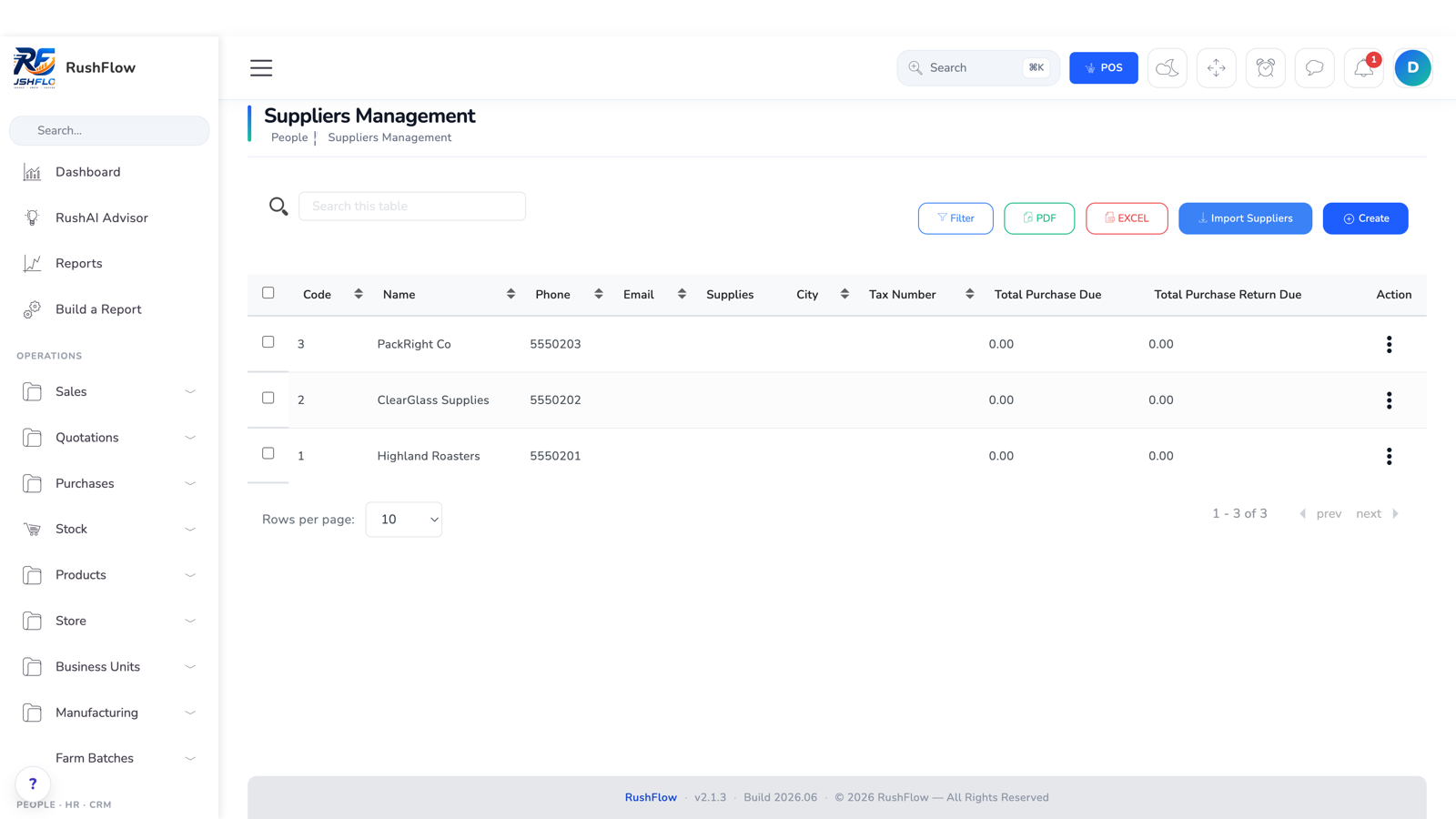
You can check your work at any point: a supplier's Owed figure is their opening balance, plus unpaid bills and any freight billed, less returns and payments. It should match what the supplier's own statement says.
Then enter the documents, oldest first
Order matters for stock costing, so work forwards through time.
- Products first. Anything you bought or sold in the period has to exist before you can reference it. A product you add now can still receive back-dated movements.
- Supplier bills (purchases). Purchases → Create Purchase. Choose the supplier and the receiving location; set the date to the date on the supplier's memo, not today; add one line per product with the quantity and the real unit cost from that memo; and set the status to Received so the stock moves and the bill becomes payable. Leave the payment on Pending — you record what you actually paid later, on its own date. The reference (PR_xxxx) is allocated in the order you type rather than by date; that is expected.
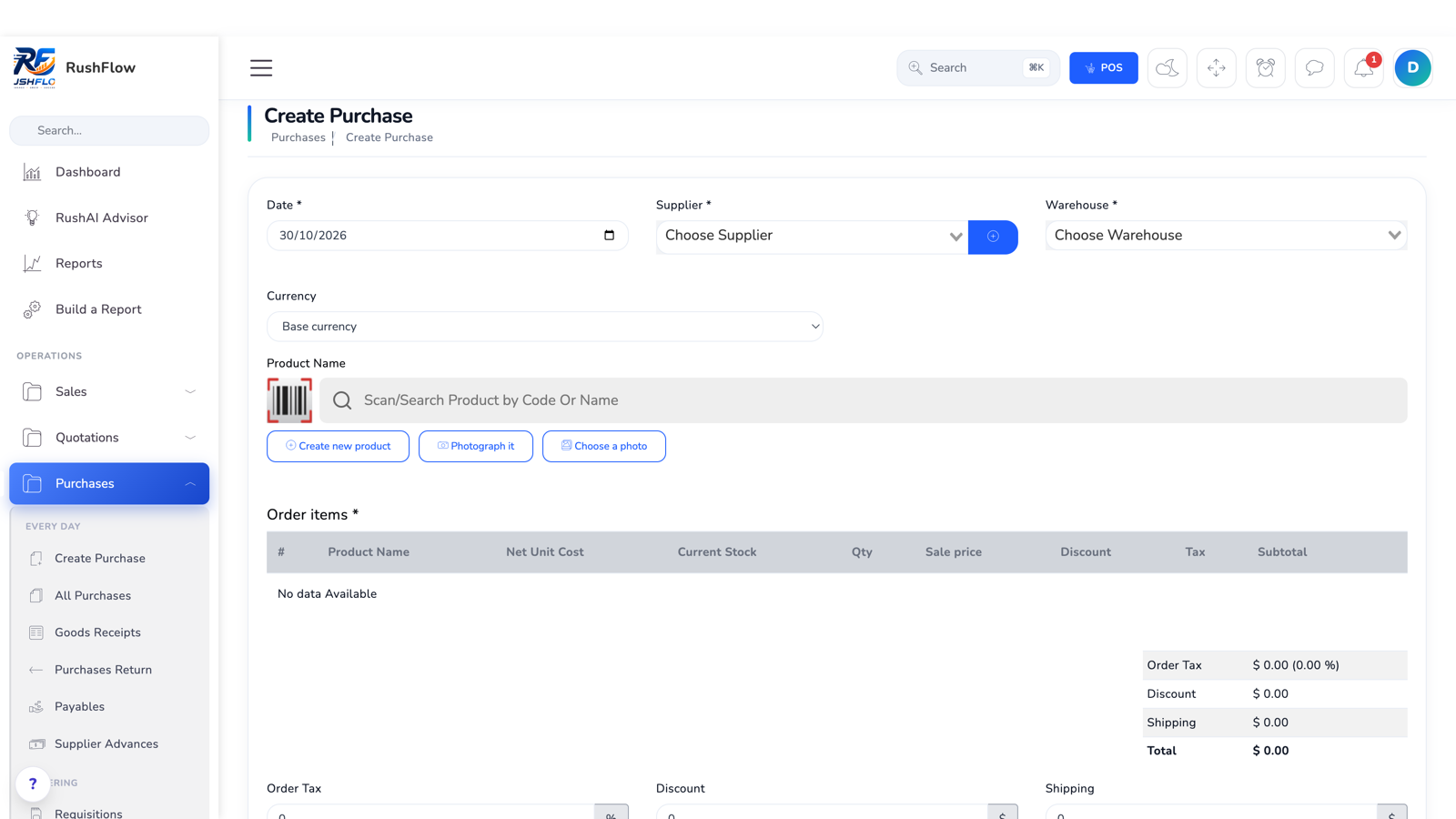
Purchases → Create Purchase. Set the Date to the supplier’s memo date — it opens on today’s. - Unloading, carrying and labour are YOUR costs, not the supplier's. Record them under Money in & out → Create Expense, dated when they happened. Add a cost to the purchase itself only when a third party invoiced you for it and you can name that vendor — then it is money you owe them, and it is settled like any other bill. A cost with no vendor named is not a payable, and it must never land on the balance of the business that sold you the goods.
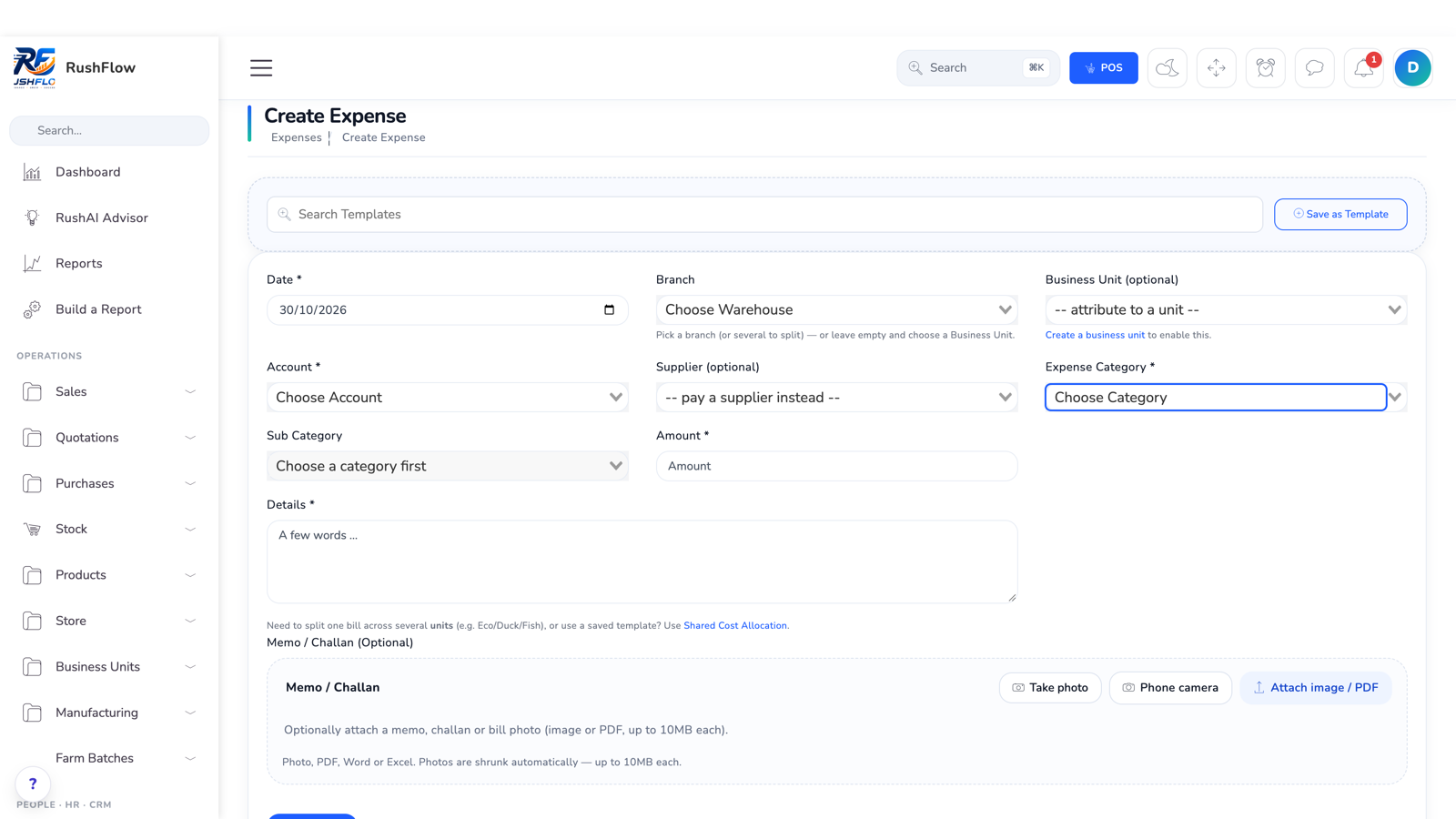
Money in & out → Create Expense. Unloading, carrying and labour you paid for yourself go here. - Sales. Sales → Create Sale, with the real date. For business you have no product detail for, tick Manual sale and enter the amount with the estimated product purchase price — it records the revenue and an estimated cost without touching stock.
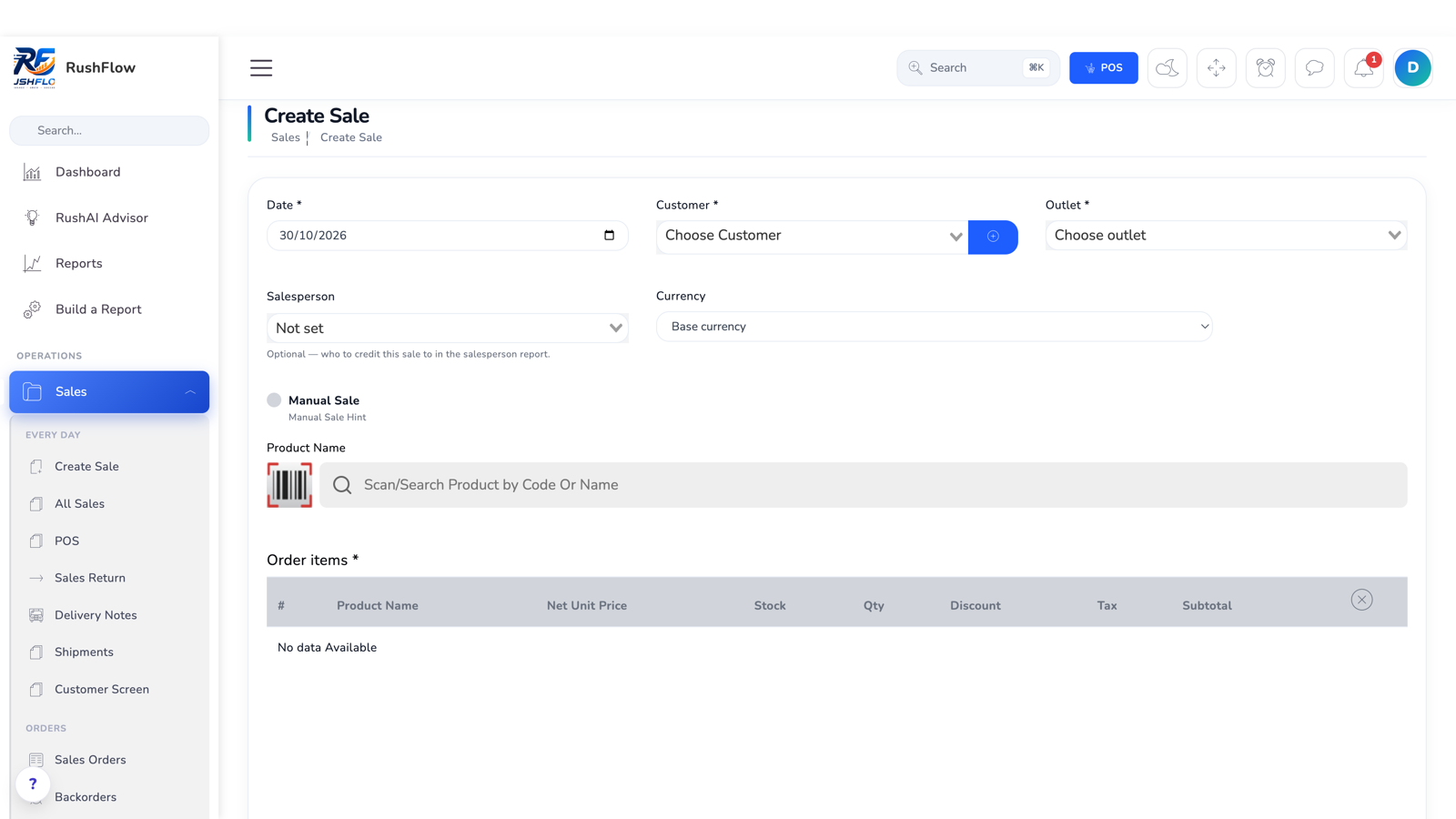
Sales → Create Sale, with the real date of the sale. - Returns — both yours and your customers' — dated when they happened.
- Expenses. Money in & out → Create Expense, each on its own date and category.
- Payments last. Record what you actually paid and received, dated when it moved, against the bills and invoices now on the system. Doing payments last means each one has something to settle.
A bill you have no product detail for
Older bills often name a total and nothing else — the goods were never recorded line by line, or the memo simply says “July goods”. You can still record them. On Purchases → Create Purchase, switch on Manual purchase: the product picker disappears and you enter the supplier, the date from the memo, and the amount.
No stock is changed, and that is deliberate. There are no quantities to change, and your stock today already comes from your opening figures or a count — so adding last July's goods to inventory now would count them twice. What it does record is the two things that are true: you owe the supplier that money, and it cost you that much. The bill appears in their balance and on their statement, and you settle it like any other.
The cost lands in its own line, Purchases (no stock detail), inside cost of sales — so your gross profit is right, and you can always see how much of it came from summary entries rather than itemised receipts.
Use a real itemised purchase whenever you have the detail: only that one values your stock per product, and only that one makes future margins accurate.
Months of history: import instead of typing
Entering a few dozen documents by hand is fine. Entering a quarter of them is not, and a tired person typing the same form four hundred times makes mistakes that are harder to find than the originals. Both sales and purchases can be loaded from a spreadsheet, and each import carries its own date, which is what makes it usable for back-dating.
- Purchases → Import Purchases — one file per supplier bill. Set the date to that bill's date and the status to Received, then upload the lines (product code and quantity and cost). Download the example file from the screen rather than inventing the column names.
- Sales → Import Sales — the same shape for a day's or a period's sales.
- Products → Opening Stock — for what you were simply holding at the start, with no bill behind it. See Setting opening balances.
Import the oldest first, for the same reason you would type them in that order: stock cost is averaged as goods arrive.
Re-cost the period when you have finished
Stock cost is averaged as goods arrive. If you enter a sale before the purchase that supplied it, that sale was costed from whatever the system knew at the time — so after a back-dating session the cost of goods on some sales can be understated, which overstates your profit.
Ask your administrator to run the inventory re-cost once the period is complete. It recalculates the correct cost for every affected sale and posts only the difference, dated to the original sale, so the correction lands in the month it belongs to. It is safe to run more than once.
Then check Accounting → Trial Balance and the Profit & Loss for the back-dated months, and compare the Stock value report to what you believe you were holding.
Correcting a supplier balance
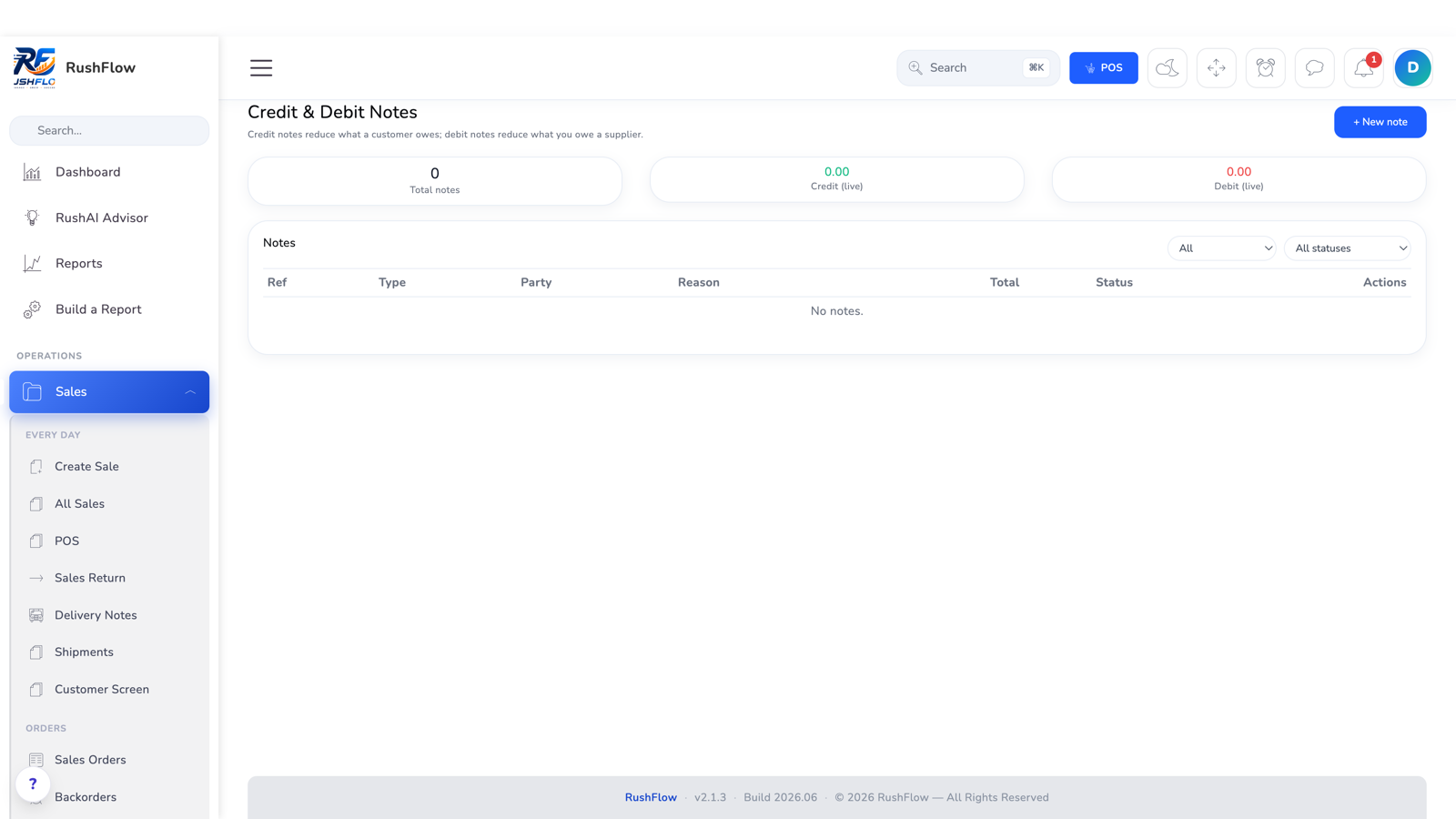
If RushFlow still does not match the supplier's own statement, do not edit history to force it. Raise an adjustment: Sales → Credit & Debit Notes, type Debit note, pick the supplier, enter the amount and the reason, and Issue it. A debit note that is not tied to a particular bill is a general adjustment to that supplier's balance — an allowance, a short delivery, a difference you have agreed — and it lowers what you owe with a reason attached, which an edited invoice never does.
To check a supplier line by line, open Accounting → Statements and pick them: every bill, payment, return and adjustment in date order with a running balance — the document you can sit beside their own statement and tick off.
Their Owed figure is always the same sum: opening balance, less anything paid against it, plus unpaid bills, plus any cost a named vendor billed you, less returns awaiting refund, less adjustments. When it disagrees with their statement, one of those parts is what to look at.
Lock the period so it stays right
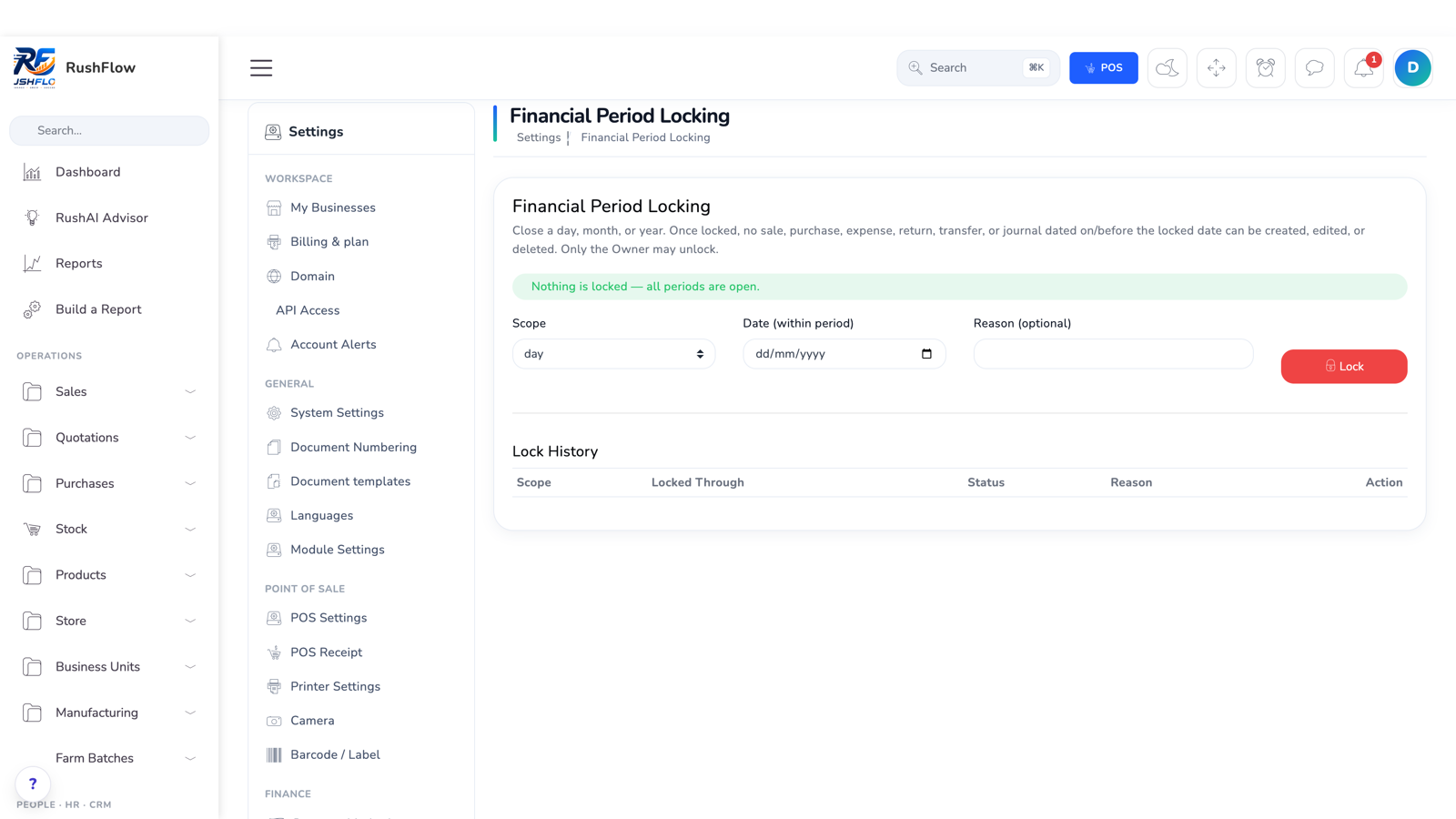
When you are satisfied, close the door behind you: Accounting → Period Lock, locked through your end date. After that, no document dated on or before it can be created, changed or deleted, so a later mis-keyed date cannot reopen months you have already agreed. Only the Owner can unlock.
Watch for these
- Check the year on every date. A mistyped year is the most common back-dating mistake, and a document dated outside a plausible range is refused rather than quietly filed where no report will find it.
- Reference numbers follow entry order, not date. A July purchase entered today gets a higher reference than a September one. That is cosmetic — sort by date, not by reference.
- Do not use the till for back-dated sales. The point of sale records to the shift that is open now. Enter earlier sales from Sales → Create Sale instead.
- Stocktake afterwards, not during. Count once the history is in, so the count is measured against complete records.
- Enter the real costs, not round numbers. Every margin, valuation and profit figure for the period is built from them.
Ready to run your business on RushFlow?
Start a free trial, or explore the live demo — no credit card needed.
Create your account →